Clabrate stays out of your way: there’s no big window to manage during normal use. Instead it lives in two small surfaces — the menu bar and the floating HUD.
The menu-bar control
Look for the ✨ icon in your macOS menu bar (top-right). Click it to:
- Toggle AI enhancement on or off.
- Switch the enhancement style (Email, Casual, Formal, Code, Markdown, Raw).
- Open Overlay → Show Overlay — the boards overlay — and, if you’ve let him out, summon or send home Spot.
- Jump to Settings and other quick actions.
The glyph reflects state at a glance — plain when enhancement is off, sparkled when it’s on.
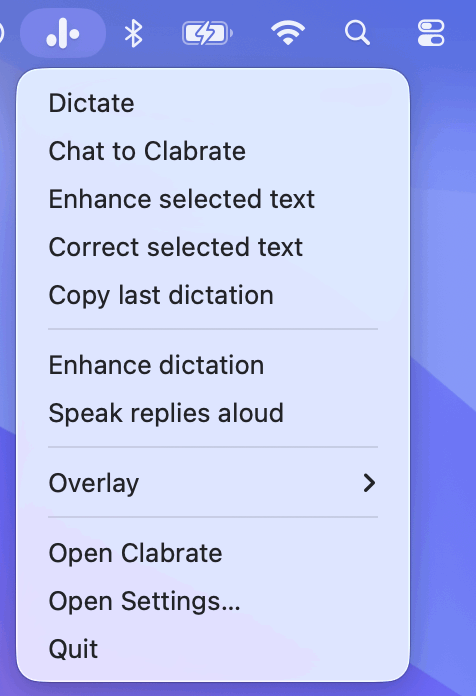 Screenshot pending: menubar-open.png
Missing a dot? If the mark looks like it’s lost its right-hand dot, that’s Spot out for a wander. He’ll put it back when he goes home.
The floating HUD
The HUD is a small overlay that appears while Clabrate is working. It tells you what’s happening:
- Listening — a live equalizer animation while you dictate.
- Thinking — when an AI model is enhancing or answering.
- Live text panel — an optional readout of what’s being transcribed (toggle it on or off).
It also carries a Send to scratch pad button — on the dictation panel and beside an assistant reply — which drops that text onto a fresh Sticky pad on the overlay.
Make it yours
In Settings → Look & HUD you can tune the HUD:
- Visual style — four to choose from: Classic Aurora (the default swirl), Northern Lights (an aurora over the Earth, seen from orbit — there’s a story behind the name), Ink (a suminagashi ink-on-water look), and Continuum (a flowing voice stream).
- Position — 7 presets, or press and hold the visual for about 300 ms to drag the HUD anywhere on screen. It snaps near position zones, remembers where you drop it, and double-clicking resets the position.
- Text panel — show or hide the live transcription readout.
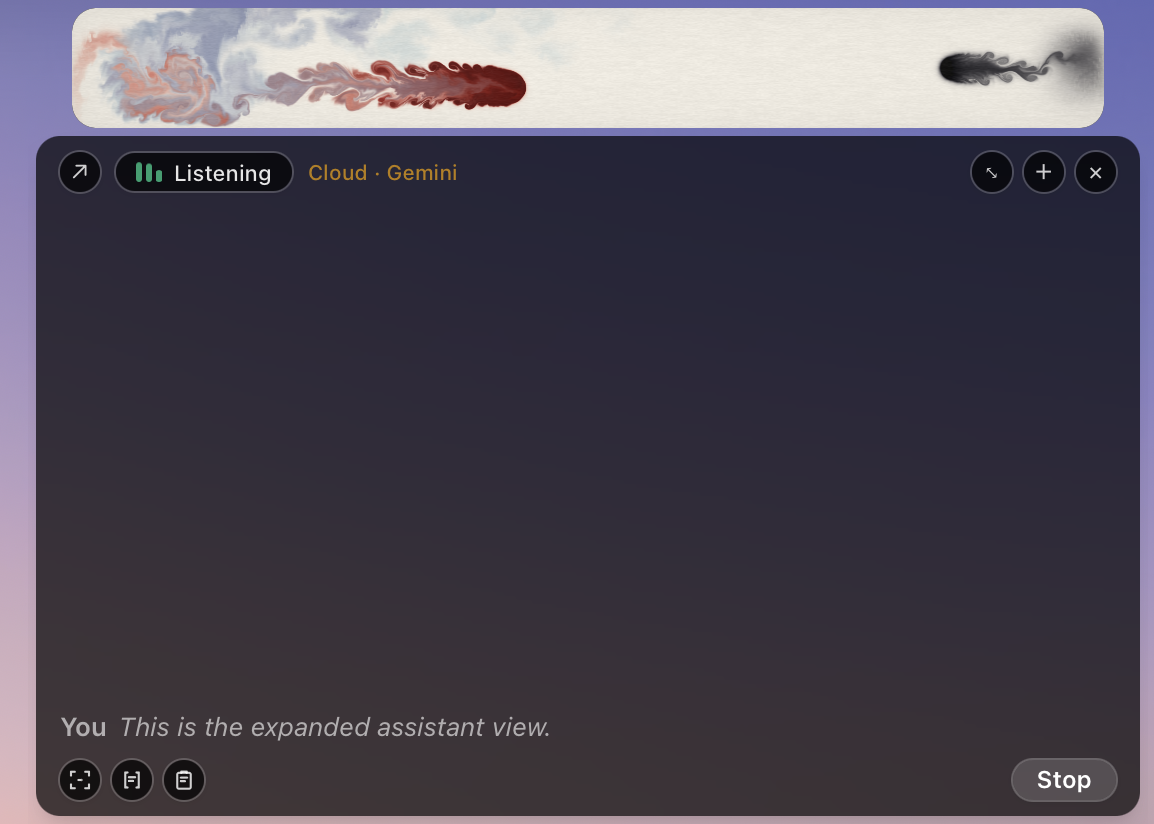 Screenshot pending: hud-states.png
Common questions
Can I hide the HUD? It only appears while Clabrate is active, then fades away. You can reposition it and toggle the text panel, but the state indicator is what tells you it’s listening.
Which visual is the default? Classic Aurora. Northern Lights, Ink, and Continuum are selectable alternates — try them in Settings → Look & HUD, or just ask the assistant to switch (e.g. “switch the HUD to northern lights”).
The HUD is in an awkward spot. Press and hold its visual, then drag it, or pick one of the 7 position presets. Double-click the visual to reset its position.