Every voice tool stumbles on names, jargon, and brand spellings it hasn’t seen. Clabrate’s Words settings let you fix those once so they’re always right.
What you can add
In Settings → Spellings you can define:
- Spellings — names and terms Clabrate should transcribe a specific way (your company, a colleague, a product).
- Replacements — text that should always be swapped for something else (an acronym expanded, a shorthand spelled out, a consistent capitalization).
- Protected vocabulary — terms Clabrate should preserve exactly and never “correct.”
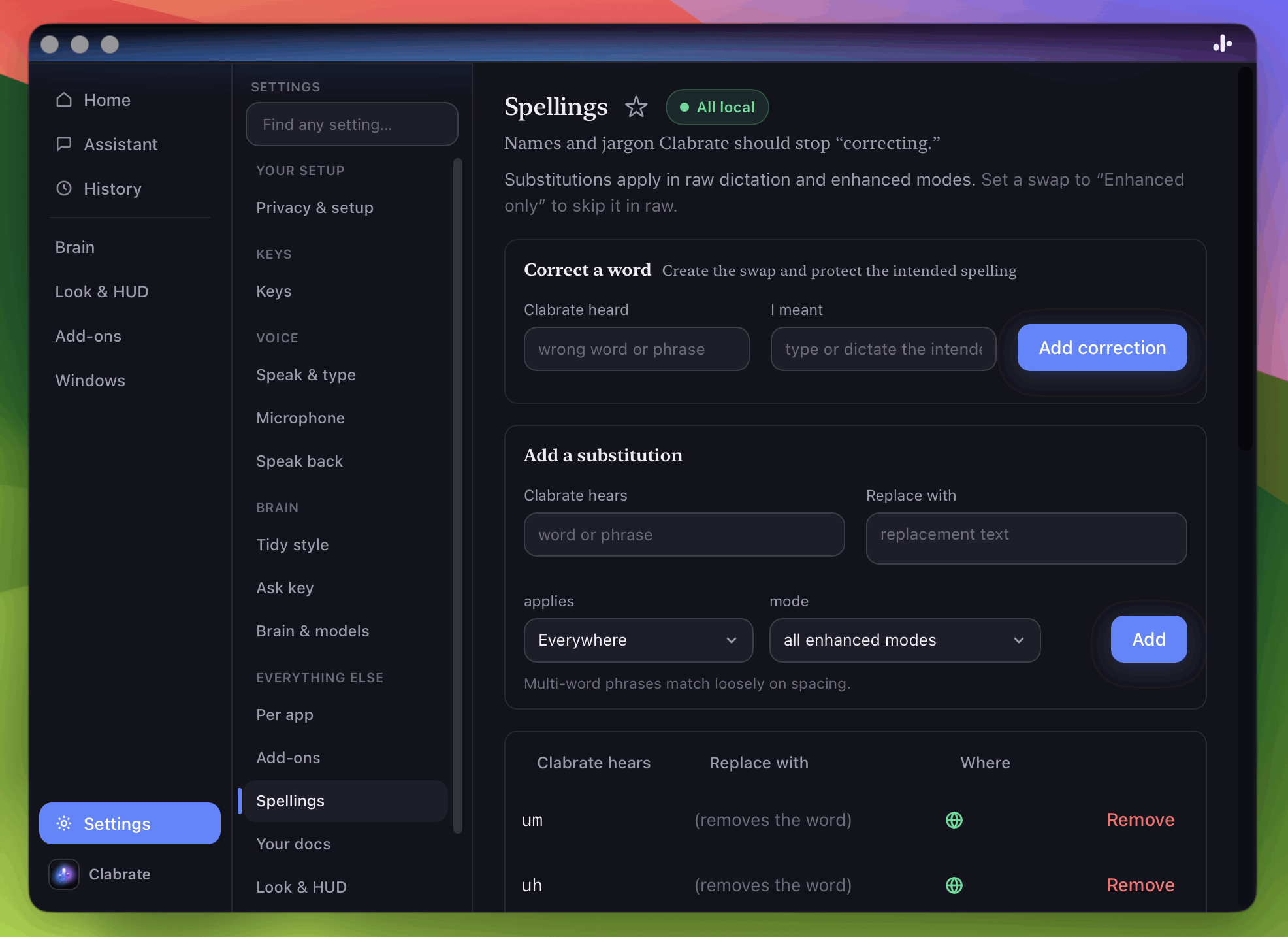 Screenshot pending: words-settings.png
When to use each
- A teammate’s name keeps coming out wrong → add a spelling.
- You always say “API” but want “Application Programming Interface” written out → add a replacement.
- A made-up product name keeps getting “fixed” into a real word → add it to protected vocabulary.
Tip: If Clabrate repeatedly mishears one specific word, that’s the signal to add it here rather than re-recording until it guesses right.
Say a keyword, expand it into more
Replacements aren’t only for fixing words — they’re a fast way to say something short and have it expand into something long. Set the keyword as the term and the full text as the replacement, and the next time you say the keyword while dictating, Clabrate types out the whole thing.
This turns phrases you repeat all day into one or two spoken words:
- Say “standup template” → expands to your full standup format (Yesterday / Today / Blockers).
- Say “my signature” → expands to your name, title, and contact block.
- Say “bug report” → expands to the prompt you always paste into the assistant.
A few tips:
- Pick a distinctive keyword so you don’t trigger it by accident in normal speech (e.g. “insert standup” rather than just “standup”).
- It works in plain dictation, not just enhanced modes — the expansion happens as your words are inserted.
- Keep the keyword easy to say the same way each time.
Common questions
Is this case-sensitive? Replacements respect the exact output you enter, so use them to lock in consistent capitalization.
Does it slow anything down? No — these substitutions are applied locally as part of transcription.
Do my words leave my Mac? No. Your vocabulary lives on-device with the rest of your data — see Privacy & your data.
Troubleshooting
- A word still comes out wrong. Double-check the entry’s exact spelling, and make sure you’re saying it close to how it’s written. For tricky proper nouns, a spelling entry plus speaking a touch more deliberately works best.