Accurate dictation starts with a good signal. Clabrate lets you choose your microphone and gives you a few simple habits that make a real difference.
Choosing your microphone
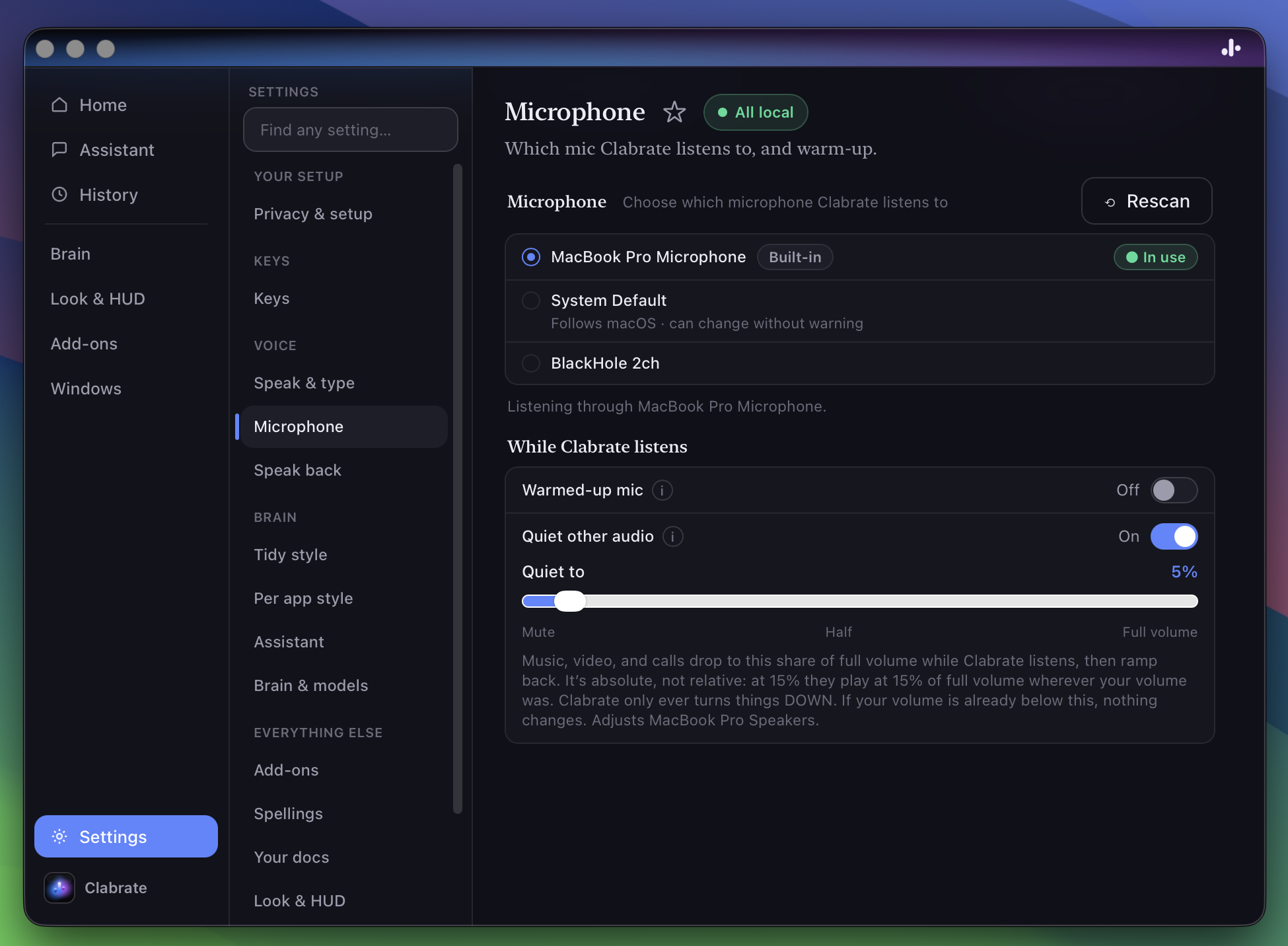
Open Settings → Microphone and pick the input device you want Clabrate to use. This matters when you have more than one — a laptop mic, an external mic, AirPods, a webcam, a desk interface.
 Screenshot pending: audio-settings.png
Note: If Clabrate can’t hear you at all, first confirm the Microphone permission is granted (System Settings → Privacy & Security → Microphone). See Troubleshooting.
Tips for accuracy
- Use a consistent distance. Keep the mic roughly a hand’s width away and don’t drift closer and farther.
- Reduce background noise where you can — a fan or a busy café taxes any speech model.
- Speak in complete thoughts, at a natural pace. Word-by-word dictation actually transcribes worse than normal speech.
- A headset or external mic beats a far-field laptop mic in noisy rooms.
- Teach it your jargon — names and terms it keeps missing belong in Words & vocabulary.
Warmed-up mic
Starting dictation has to wake the microphone, and that takes a fraction of a second. If you begin talking immediately, the very first word can arrive clipped. Warmed-up mic (at the bottom of Settings → Microphone, off by default) keeps the audio device open while Clabrate is idle, so dictation starts on an already-awake mic and the first word lands whole.
While it’s on:
- Nothing is transcribed or stored while idle. The standby audio is discarded as it arrives — Clabrate doesn’t transcribe until you start dictation.
- The macOS recording indicator stays lit while Clabrate is idle, because the device really is open.
- It uses a little extra battery. That trade is why the setting is opt-in.
The toggle takes effect immediately — no restart needed. For the longer story behind the clipped first word and the trade this setting makes, see Why dictation eats your first word.
Quiet other audio
Dictating over your own music — or worse, a video that keeps talking while you do — muddies what the mic hears and what you can hear of yourself. Quiet other audio (in the same While Clabrate listens group, off by default) turns the Mac’s volume down while Clabrate is actually listening, then ramps it back the moment you stop.
The Quiet to slider sets how far down: it’s an absolute share of full volume, not a relative cut. At 15%, music plays at 15% of full volume wherever your volume was; at 0 it mutes outright. Clabrate only ever turns things down — if your volume is already at or below the target, nothing changes at all.
A few properties worth knowing:
- It quiets only while listening. The key held down, or the span between taps in toggle mode — not while Clabrate is thinking, tidying your words, or pasting. The volume is already back before the enhanced text lands.
- It covers every way Clabrate listens: dictation, talking to the assistant, and speaking a one-time style for a transform.
- You stay in charge. If you adjust the volume yourself while Clabrate is holding it down, it takes the hint and leaves your volume alone from then on.
- It adjusts the current output device — the setting names which one, e.g. your MacBook speakers. A few outputs (some HDMI and multi-device setups) don’t allow software volume control; Clabrate tells you rather than silently doing nothing.
- Interruptions are safe. If Clabrate quits or crashes mid-listen, your volume is restored the next time it launches.
Common questions
Which microphone is best? Any decent headset or external mic with a steady distance. The built-in mic is fine in a quiet room.
Why does accuracy vary by room? Background noise and echo change what the model hears. Quieter and closer is better.
Does Clabrate adjust levels for me? Pick the right device and a sensible distance; consistency does most of the work.
Troubleshooting
- No reaction in the HUD when I talk. Wrong device selected or mic permission missing — check both (see above).
- Quiet or clipped audio. Move to a steadier distance and confirm the right input device is chosen in Settings → Microphone.