Most Clabrate issues come down to a macOS permission that isn’t granted, or a model that hasn’t finished downloading. Find your symptom below.
Text isn’t typing into my app
Clabrate needs Accessibility permission to insert text anywhere.
- Open System Settings → Privacy & Security → Accessibility.
- Make sure Clabrate is listed and toggled on.
- If it’s already on, toggle it off and back on, then relaunch Clabrate.
If a specific app still won’t accept text, allow the Apple Events prompt the first time you dictate into that app.
Clabrate can’t hear me
This is the Microphone permission, plus your input device.
- Check System Settings → Privacy & Security → Microphone — Clabrate must be on.
- In Settings → Microphone, confirm the correct microphone is selected (not, say, a disconnected headset).
- Speak a test sentence and watch the HUD react.
A shortcut won’t fire
The activation key relies on Input Monitoring.
- Open System Settings → Privacy & Security → Input Monitoring.
- Toggle Clabrate on (off/on if it’s already enabled), then relaunch.
- Check the binding in Settings → Keys in case it changed or conflicts with another app.
The speech model is missing or stuck
Clabrate downloads its speech model (~494 MB) on first run and can re-download it if files go missing.
- If dictation reports a missing model, follow the in-app download/recovery prompt in the HUD.
- Make sure you’re online for the download, then try again — once it’s in place, dictation works offline.
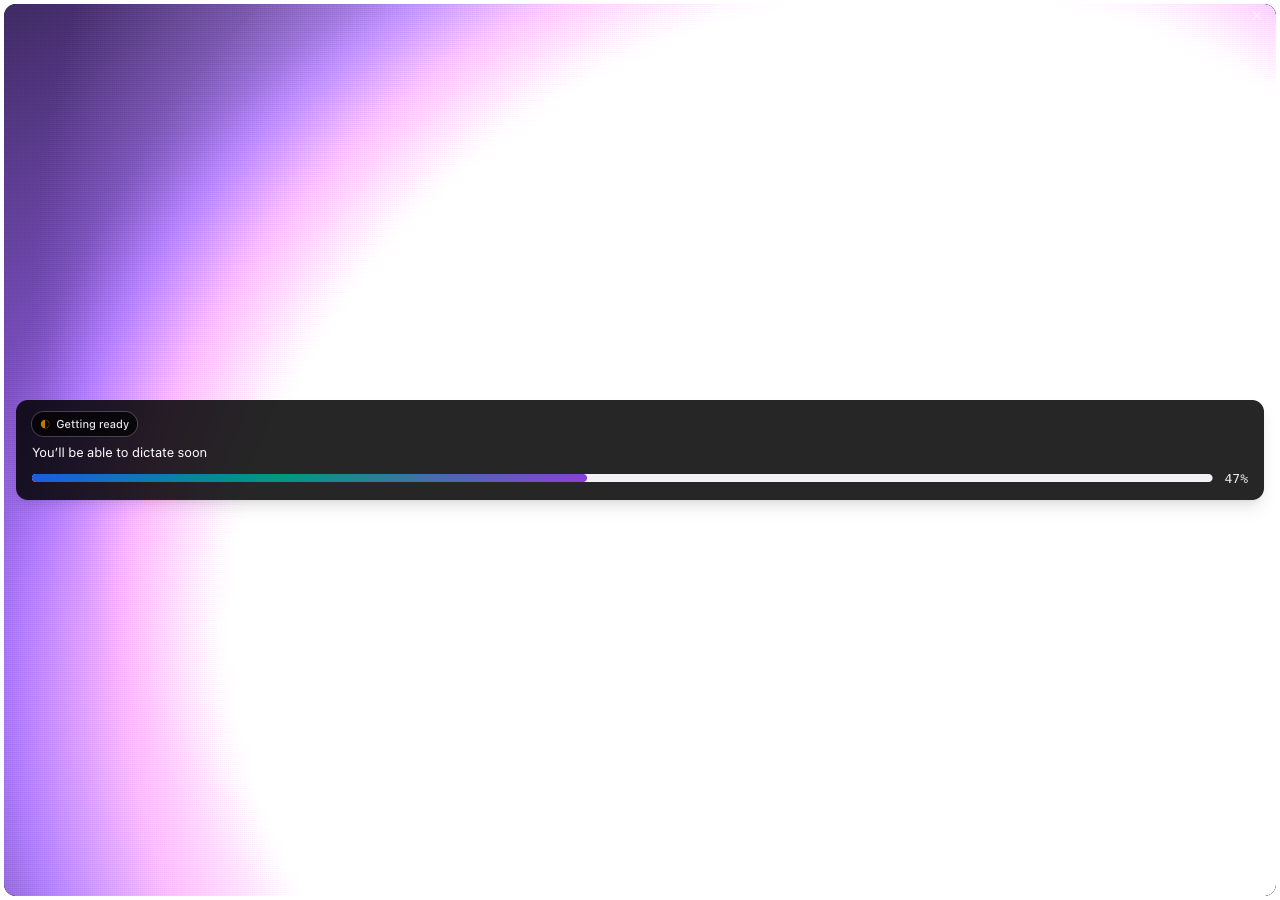 Screenshot pending: model-recovery.png
Gemini says “unavailable”
The cloud provider couldn’t be reached or authenticated.
- Check your internet connection.
- In Settings → Models, confirm your Gemini API key is entered (it’s stored in the Keychain). Get one at aistudio.google.com/apikey.
- Switch to the on-device Llama 3.2 1B profile to keep working without the cloud.
A permission seems stuck
When macOS gets into a weird state, the reliable fix is to toggle the permission off and on in System Settings → Privacy & Security, then relaunch Clabrate. This clears most one-off glitches.
Still stuck?
- Skim the FAQ for quick answers.
- Email support@clabrate.com — and if asked, export a redacted support log from the Developer page (review it before sharing; diagnostic content may remain).